USB & 3.5mm Wired Headset with Microphone: Setup Guide
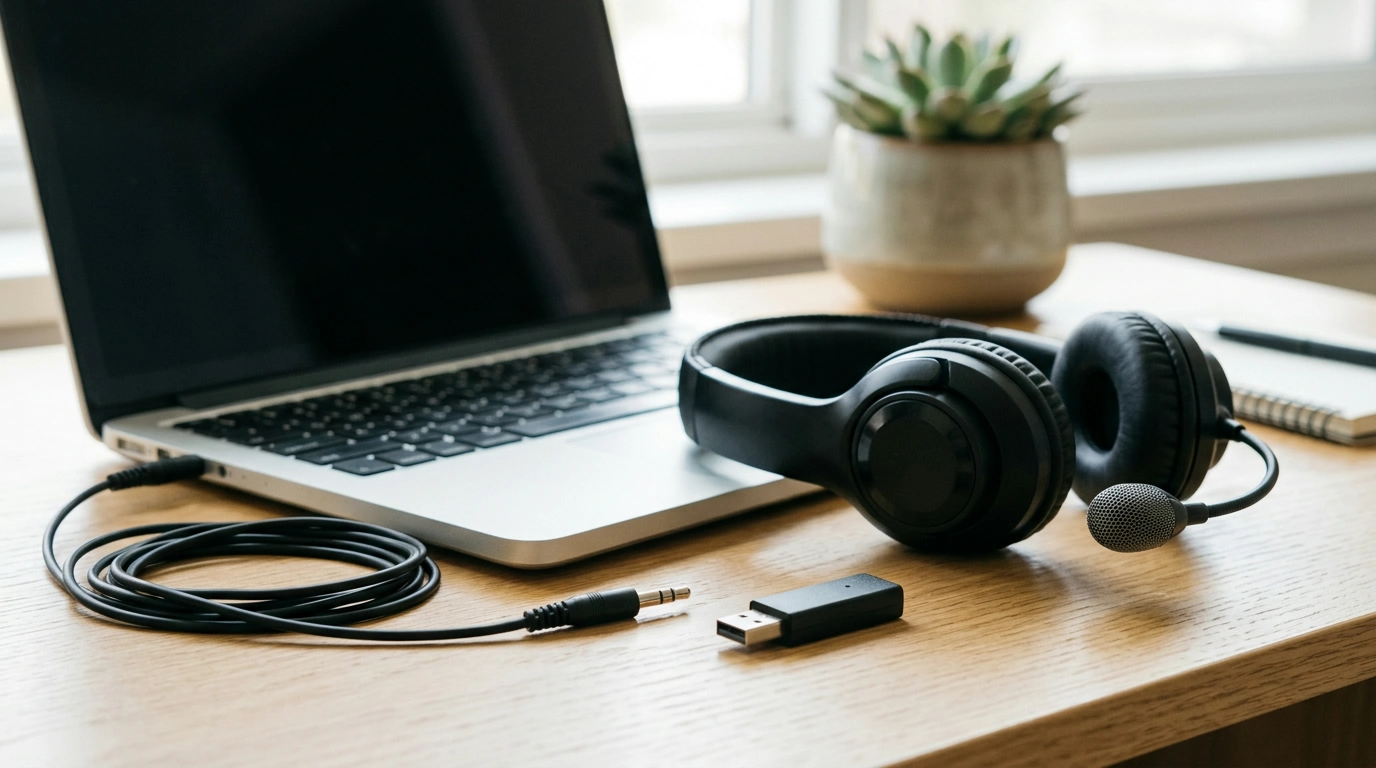
A wired headset can give you a straightforward way to listen and speak during calls, online meetings, and other everyday activities. Before you buy, take a moment to look at the connections on your device and consider how you plan to use the microphone. A suitable port is a good starting point, but your device also needs to support headset audio and microphone input. For more guidance, see Logitech H390 Wired USB-A Headset with Noise Cancelling.
A Wired Headset for Everyday Conversations
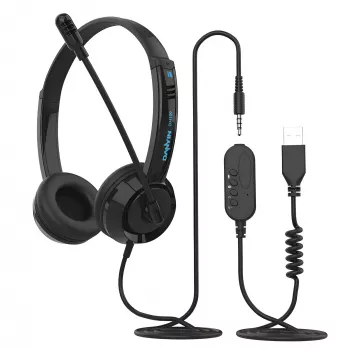
Our USB & 3.5mm Wired Headset with Microphone is a wired option for listening and speaking. You can consider it for conversations with friends, work calls, online meetings, and listening between calls. Having a microphone as part of the headset gives you an audio input to select when a conversation requires you to speak. For further reading, see USB headset (with mic) for music, work, and gaming on PC.
The headset is listed at $16.67. Visit the product page for current availability and details before placing your order. We recommend considering your device’s ports and audio settings alongside the price, since a connection that fits physically may still need the right support for both listening and speaking.
USB and 3.5mm Connections
USB and 3.5mm describe different kinds of connections. USB ports transfer digital data, while a 3.5mm audio jack is a small, round connection commonly used for audio. Your device may have one type, both types, or neither. Port shapes and audio capabilities vary, so identifying what is available on your device is an important first step.
For a 3.5mm connection, microphone support deserves particular attention. Some audio jacks support both a headset’s playback and microphone functions, while others may handle only one function. For USB, look at the port available on your device and its instructions for connecting a headset. Compatibility with a specific device or operating system has not been confirmed.
| Connection | What to check |
|---|---|
| USB | Check the device’s available USB port and headset support. |
| 3.5mm | Check for a compatible audio jack and microphone support. |
If you normally use a dock or adapter with your device, include it in your connection check. Its ports and audio support can differ from those on the device itself. Consult the dock or adapter’s instructions rather than assuming it will pass both microphone and playback audio through.
Getting Ready for a Call
Connect the headset using a compatible port before opening your calling app. If your device does not switch audio automatically, open its sound settings and look for the headset among the available input and output options. The input controls what others hear from your microphone; the output controls where you hear the call.
Your calling app may have separate audio settings from your device. If it does, select the intended microphone and speaker or headset there as well. You may need to revisit those settings when you switch between a headset and another audio device.
Before joining an important conversation, play a short audio clip and use your device or app’s microphone test if one is available. Start at a low volume and raise it to a comfortable level. A brief test call can also help you confirm that you can hear the other person and that they can hear you.
If Your Headset Is Not Detected
Start with the physical connection. Make sure the plug is fully seated in a compatible port, then check that the device and calling app have selected the intended audio output and microphone input. If another audio device is connected, the call may be using that device instead.
Next, review your device’s microphone permissions and confirm that the calling app is allowed to use the microphone. If the issue continues, consult the device or app’s support instructions. Windows users can also refer to Microsoft’s guide to fixing microphone problems for permission and sound-setting guidance.
Keep playback and microphone troubleshooting separate: if you can hear a call but cannot be heard, focus on the input selection and permissions. If others can hear you but you cannot hear them, look first at the output selection and volume.
More From Our Store
If you’re also browsing for a hands-on project, our 3D Puzzle Scout Beetle is available separately. Visit its product page for its current price and availability.
Before choosing, compare the product details with your daily routine, available space, care needs, and preferred setup. The strongest option is usually the one that fits the intended use clearly and remains simple to clean, store, and check before repeat use.
It is also worth checking measurements, material notes, included parts, and compatibility details so the item matches the way it will be used after delivery.
FAQ
Does this headset have a microphone?
Yes. The product is listed as a wired headset with a microphone.
Will the headset work with my device?
Check your device’s available connections and headset support before buying. Compatibility with specific devices has not been confirmed.
How do I select the headset for a call?
Connect it to a compatible port, then select the headset for audio input and output in your device or calling app’s settings if needed.








Leave a comment